Sales Navigator Searches
Perform Sales Navigator searches for people based on target criteria — location, job title, industry, and other parameters. This simplifies building outreach lists, finding contacts at target companies, and identifying mutual connections for warm introductions.
You can perform searches in 3 ways: copy the search URL directly from your browser or pass parameters through the Salesflow API (Search by Parameteres or Saved Search).
Search from copy/past Sales Navigator URL
How it works:
-
Go to Sales Navigator and create or open a search for leads
-
Copy the URL from your browser (it will look like
https://www.linkedin.com/sales/search/people?query=...) -
Pass that URL to this endpoint Post /api/v1/sales-nav/search/url
-
Get back a list of matching profiles
Navigating large result sets:
If your search returns many results, you can page through them:
-
Use
startandcountparameters to control which results you see -
When requesting next page include the
sessionIdfrom the previous response so the results stay consistent

Get Leads from a Saved Search
Retrieve all the leads from one of your saved Sales Navigator searches without needing to copy the full URL — just use the saved search ID.
When to use this:
-
You have a saved search in Sales Navigator that you use regularly (e.g., "Tech leads in SF")
-
You want to pull the latest results from that search
-
You need to automate lead list exports for your outreach sequences
How it works:
-
Find the ID of your saved search (
savedSearchId— you can get this from Get /api/v1/sales-nav/search/parameters/saved-searches) -
Pass it to this endpoint Get /api/v1/sales-nav/search/saved-search
-
Get back all matching profiles
Navigating large result sets:
If your saved search has many leads, page through them:
-
Use
startandcountto control which results you see (e.g., first 25, then next 25) -
When requesting next page include the
sessionIdfrom the previous response so the results stay consistent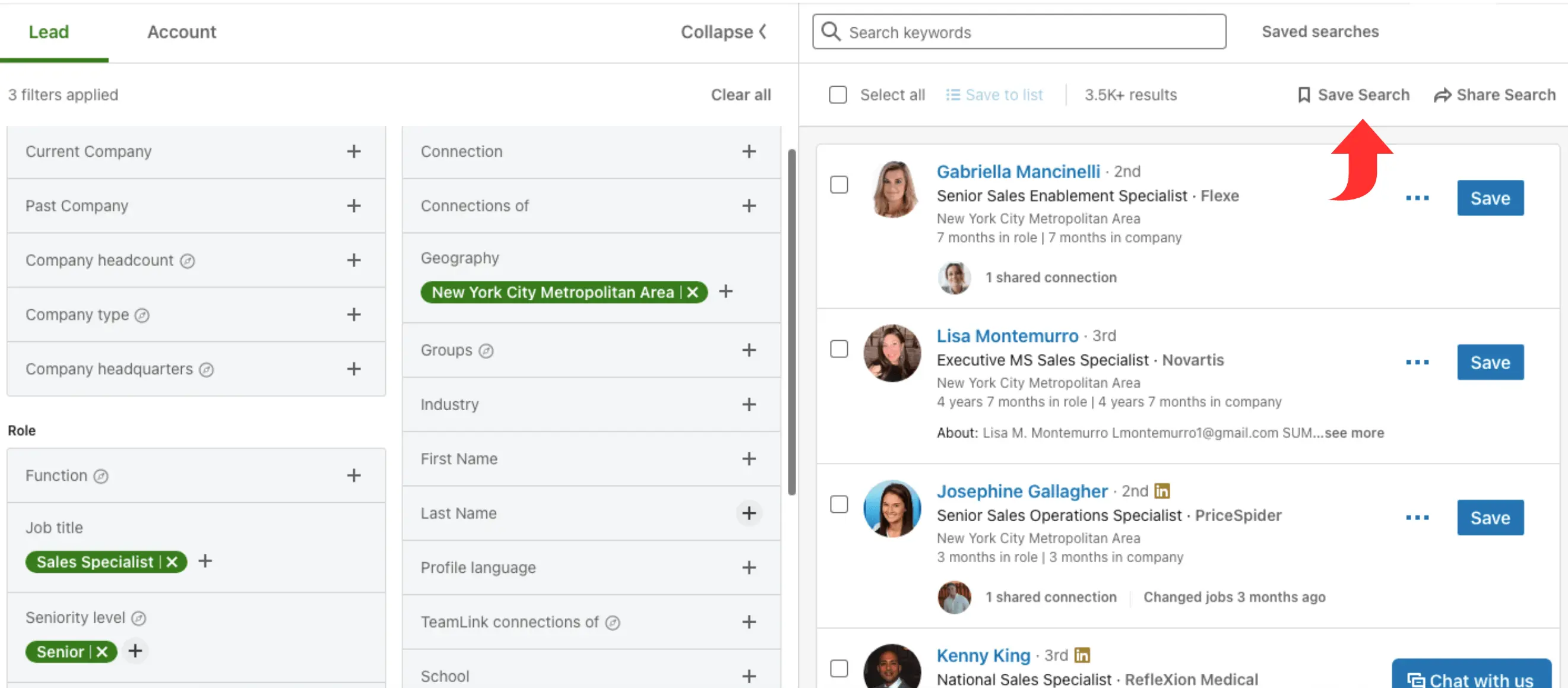
Search Leads by Parametres
Build a custom Sales Navigator search using specific filters (location, job title, company, industry, etc.) without needing a URL or saved search.
When to use this:
-
You want to build your own search inside your app
-
You want to search by specific criteria but don't have a pre-built URL or saved search
How it works:
-
Build your own search
-
Use filters , there 3 options
Keywords (ex.firstName = “John“)
Predefined value/s (ex. companyHeadCountCopy SelfEmployed = 0, One Ten = 1)
TypeHeads (ex. Title = 101) to find the id iof exact typehead use this endpoint /api/v1/sales-nav/search/parameters/facet-typeahead -
Define your search filters in the request
-
Pass the parameters to edpoint Post /api/v1/sales-nav/search/parameters
Available filters:
To see what filters and values you can use, check the facet typeahead endpoint for available options.
Navigating large result sets:
-
Use
startandcountto page through results -
When requesting next page include the
sessionIdfrom the previous response so the results stay consistent